Prepare a collection for Patreon
Turn an ordered collection into a web-ready package for a Patreon post.
Why use it
PixelPig prepares smaller sharing copies, keeps your originals untouched, and gives you or your agent the title, description, and media in the right order.
Set it up
Ask an agent to prepare and post it
Help me prepare and post my Patreon collection using https://www.pixelpig.net/agent/creator-publishing.md. Keep my credentials private, show me the collection and media order before any external action, and leave the final Patreon audience and publish choice to me.
Do this
- 01Set a project folder, open Collections in the Results panel, and create or select the collection you want to share.
- 02Open the three-dot Collection settings menu beside the collection name and choose Patreon under Collection type. Add an optional Watermark there, then close settings and put the suggested description in Notes below the media grid.
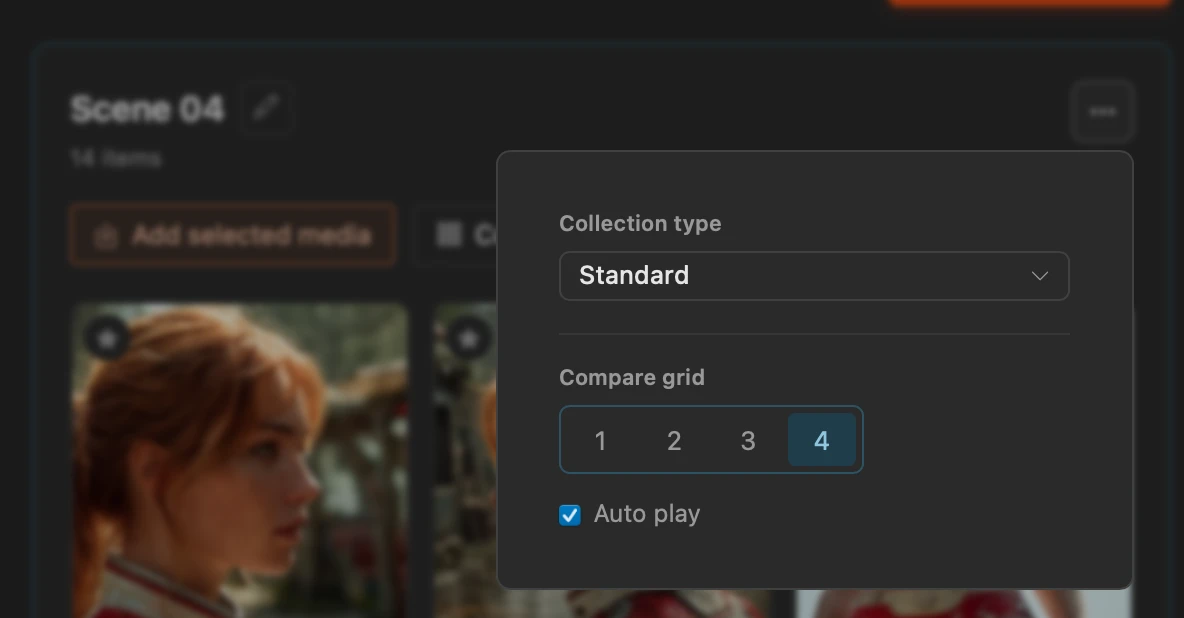
Open the three-dot Collection settings menu, then change Collection type from Standard to Patreon. - 03Select images or short videos in the media browser and choose Add selected media, then drag items or use Move earlier and Move later to set the gallery order.
- 04Choose Prepare for Patreon. Review the post title, including any emoji, description, watermark, and media order in the confirmation window, then choose Export.
- 05PixelPig shows export progress, reveals the new package under the project's patreon folder, and adds the export to Posts history. After publishing in Patreon, use Add Patreon link on that history entry to keep the post URL with the export.
- 06Upload the prepared files to Patreon's signed-in post editor in order, or use the agent message above. Review the audience, paywall, preview, and publish or schedule choice in Patreon yourself.