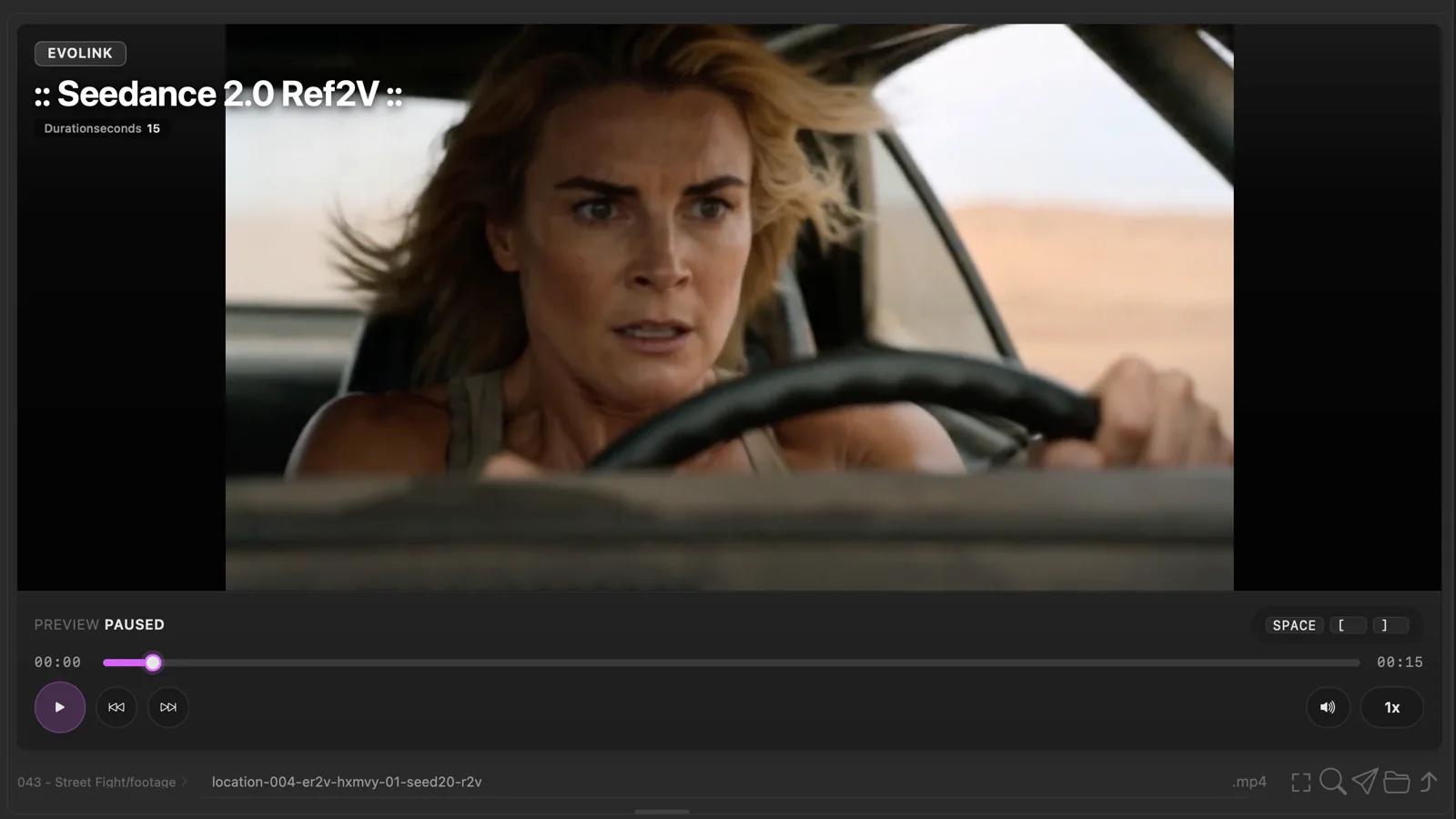
Find and preview your media
Browse a project or folder, select a file, and inspect it without leaving PixelPig.
Why use it
The media browser is the starting point for most tools and workflows that use an existing file.
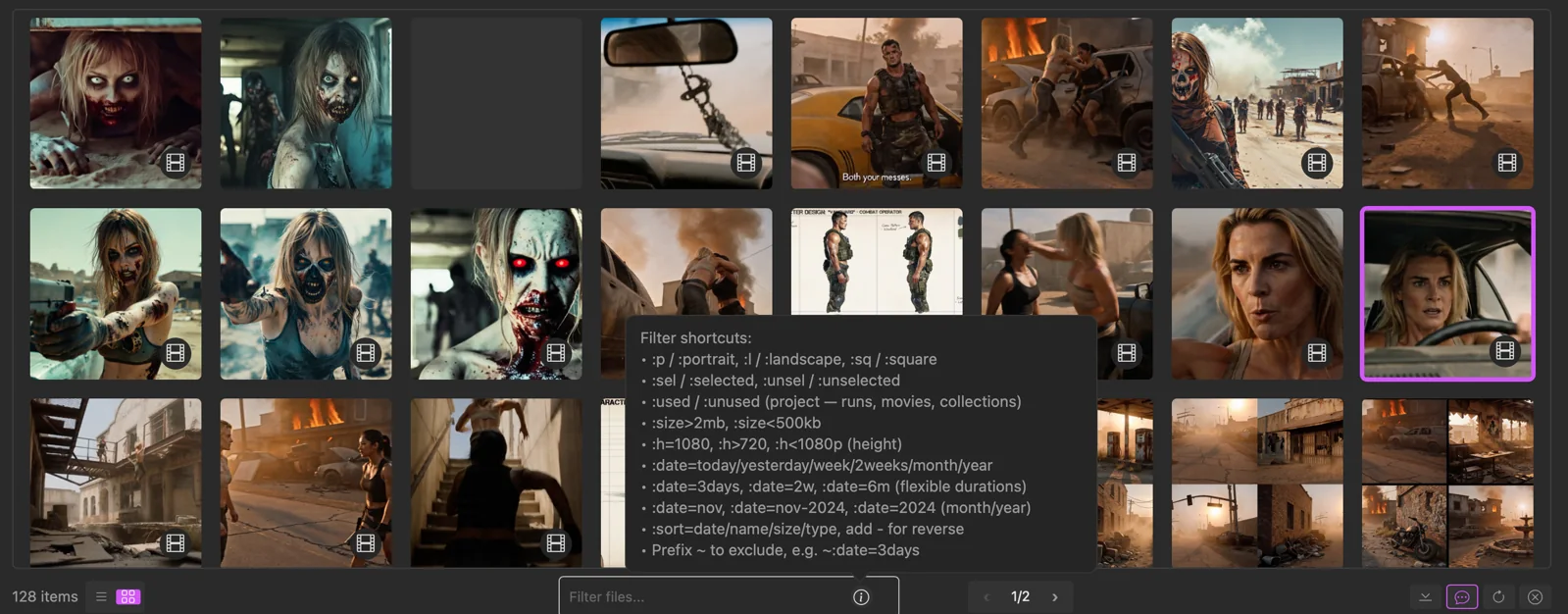
Do this
- 01Under Source, choose Project when a project is selected, Downloads, Desktop, or Custom. Choose Add Folder… to set the Custom source.
- 02Turn on the media types you want: Images, Videos, Audio, Text, or 3D Models.
- 03Select a file from the grid or list.
- 04Use the available preview actions, such as Fullscreen, Reveal in Finder or its platform equivalent, and Open in default app.