Schedule video posts to X
Write a caption, post a video now, or add it to PixelPig's posting queue.
Why use it
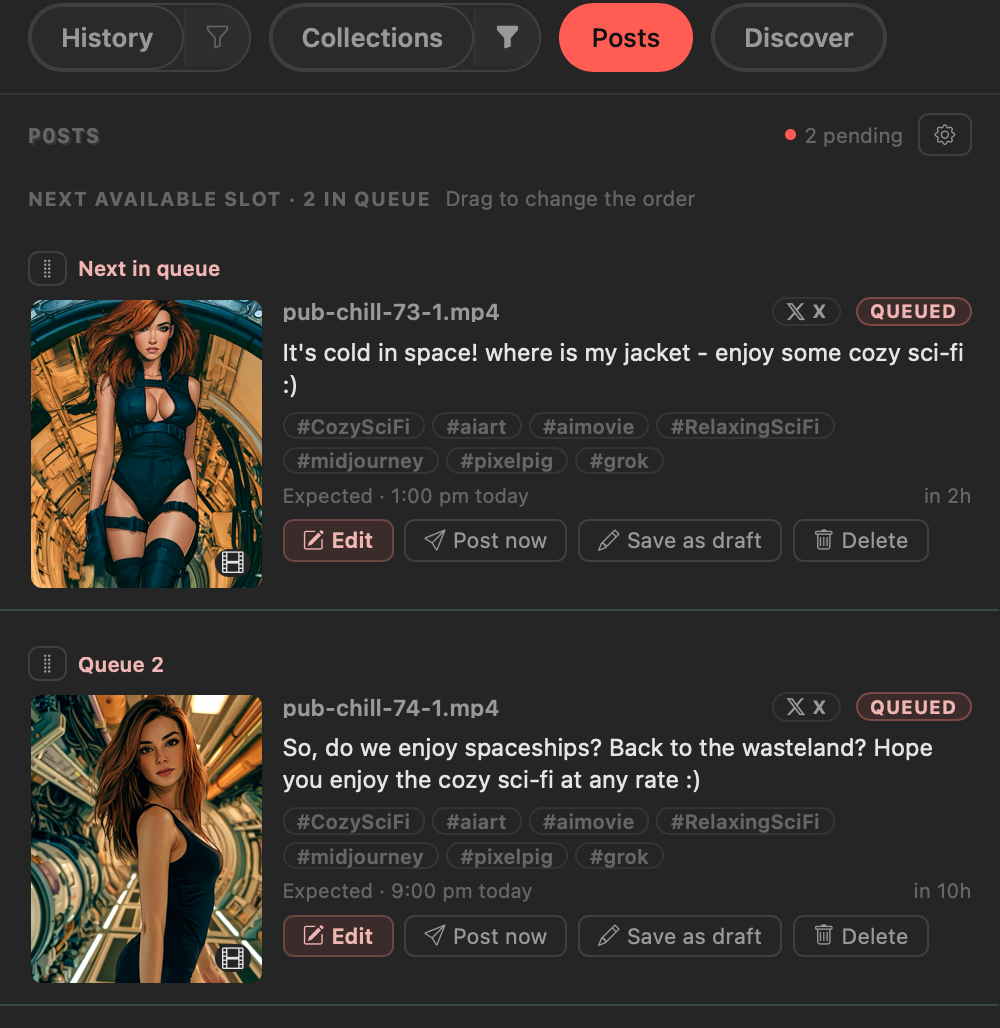
Choose how many times a day to post, then arrange queued videos in the order you want them to go out.
Do this
- 01In Results, open Posts and choose the gear button (Connections and post times). Connect X in your browser if you haven't already.
- 02Under Post times, tick only the times you want to use and set their hours. Leave two enabled to post twice a day, or choose one or all three, then Save. Untick all three to pause the queue. To resume, turn a time back on and Save. Disabled times are remembered.
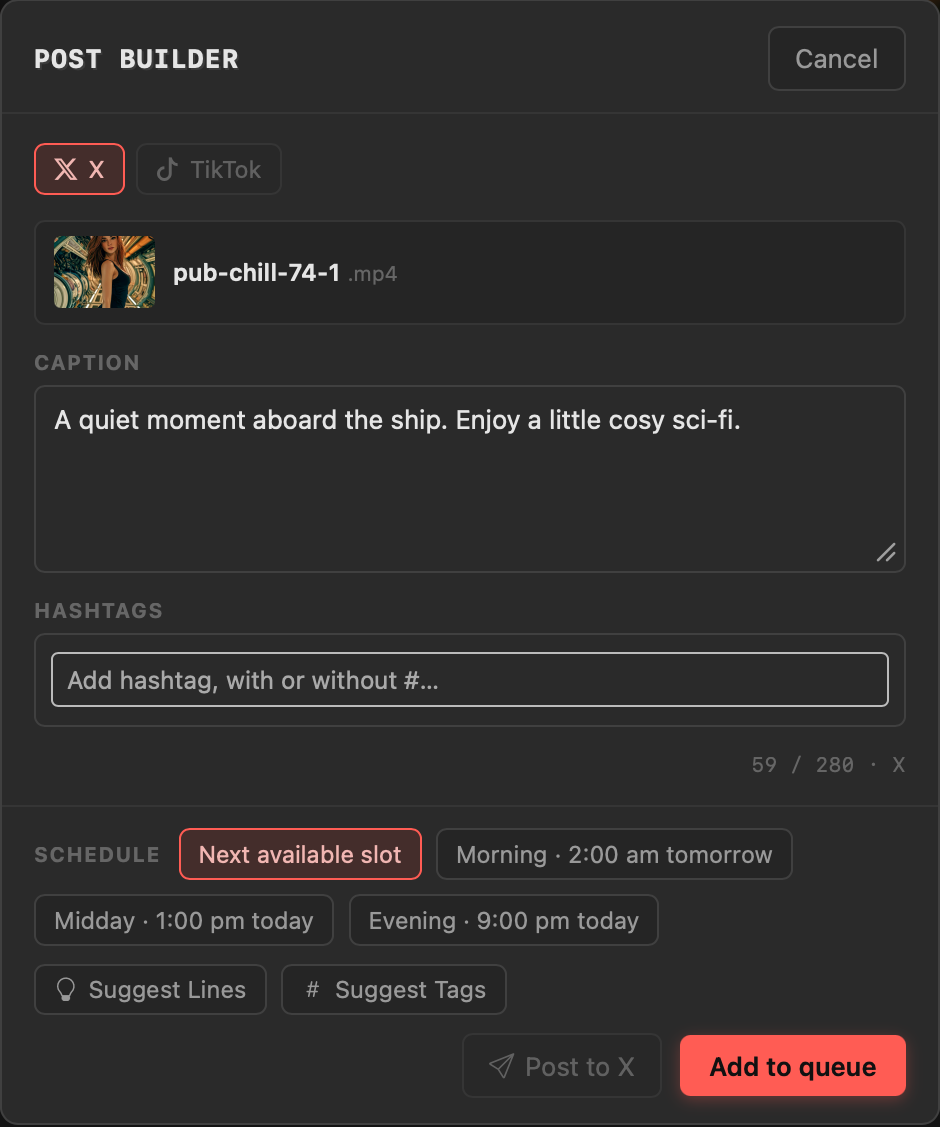
- 03Select a video and choose the paper plane button (Open Post Builder) in its preview. Select X, write a caption, and add hashtags if you want them.
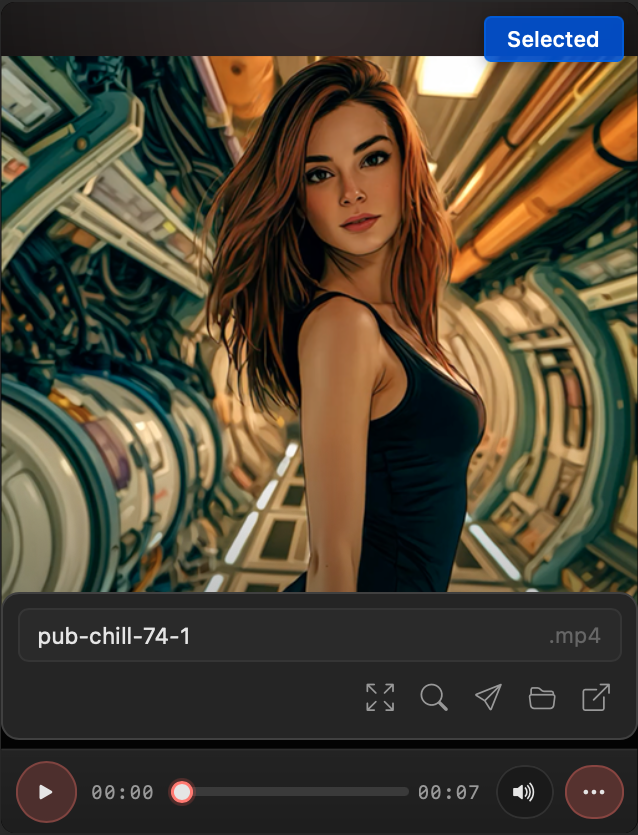
The Open Post Builder button in a video preview - 04To post straight away, choose Post to X. To queue the video, select Next available slot, then Add to queue. For a specific time, select an available Morning, Midday, or Evening slot, then Schedule.
Post Builder with Next available slot selected - 05In Posts, drag the handle beside a video's queue position to change its order. Its expected time updates to match. Changing enabled times also updates the queue; individually scheduled posts keep their dates, even while the queue is paused.
Queued posts in order, each with a drag handle - 06PixelPig must stay open for queued and scheduled posts to go out.