Find the best price for your video
Compare the cost of the same video model across providers before you generate.
Why use it
Your favourite video model can cost less through another provider. Compare prices for the settings you actually want, then switch without rebuilding the workflow.
Do this
- 01Open Actions > Workflows. Choose a video workflow and Model, then set the duration, resolution, audio and input media you want.
- 02Choose the $ button beside Model to open Compare prices. Provider tabs show estimated USD / video for the same model and your current settings, ordered from lowest price.
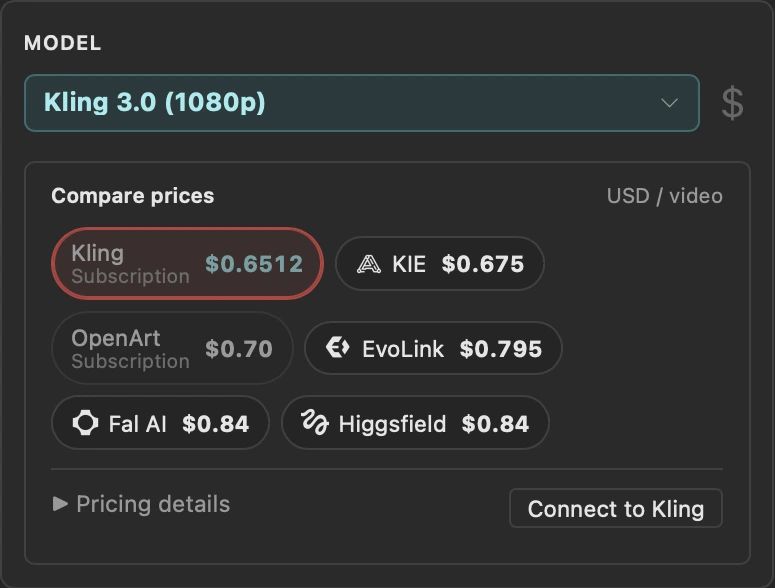
One model, several providers. Dimmed tabs can be inspected before connection. Prices shown are an example captured on 2 October 2026. - 03Select a provider tab to inspect it; disconnected providers are dimmed and still clickable. Open Pricing details for the pricing source, retrieval date and conditions. Check any unsupported-setting message before choosing a provider.
- 04Choose Switch to followed by the provider name to carry your model and shared settings across. If the provider is not connected yet, choose Connect to followed by its name and complete the connection. Check the workflow fields before running.
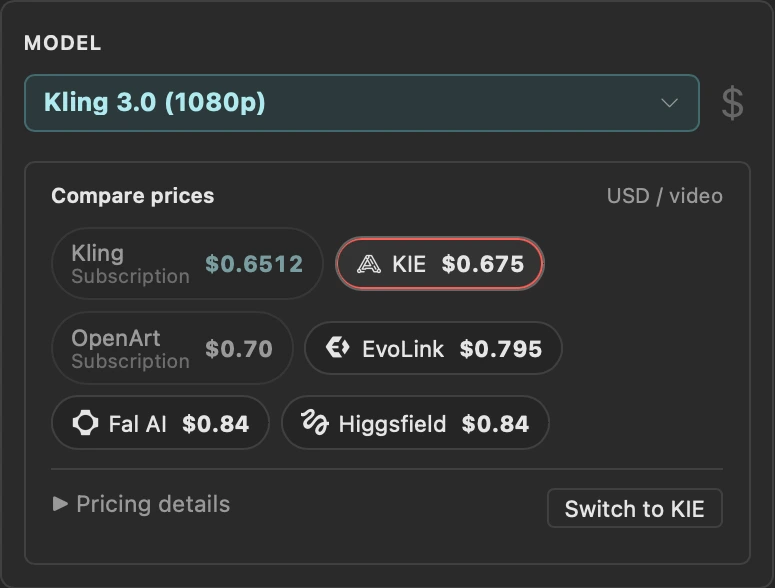
Select the lower-priced provider, then switch from the same popup. - 05Recheck the comparison whenever you change the settings. Subscription estimates allocate the published plan fee across its included credits, assuming you use them all; your connected plan may differ. Then run your chosen video workflow.