Zoom in and compare image detail
Check eyes, hands, lettering and texture at full resolution, and compare the same spot across variants.
Why use it
Generated images often differ only in small details. Zooming the same region of each variant makes those differences easy to judge.
Do this
- 01Select an image. Pinch, or hold ⌘ on macOS or Ctrl on Windows and scroll, to zoom at the pointer. Drag or scroll to look around.
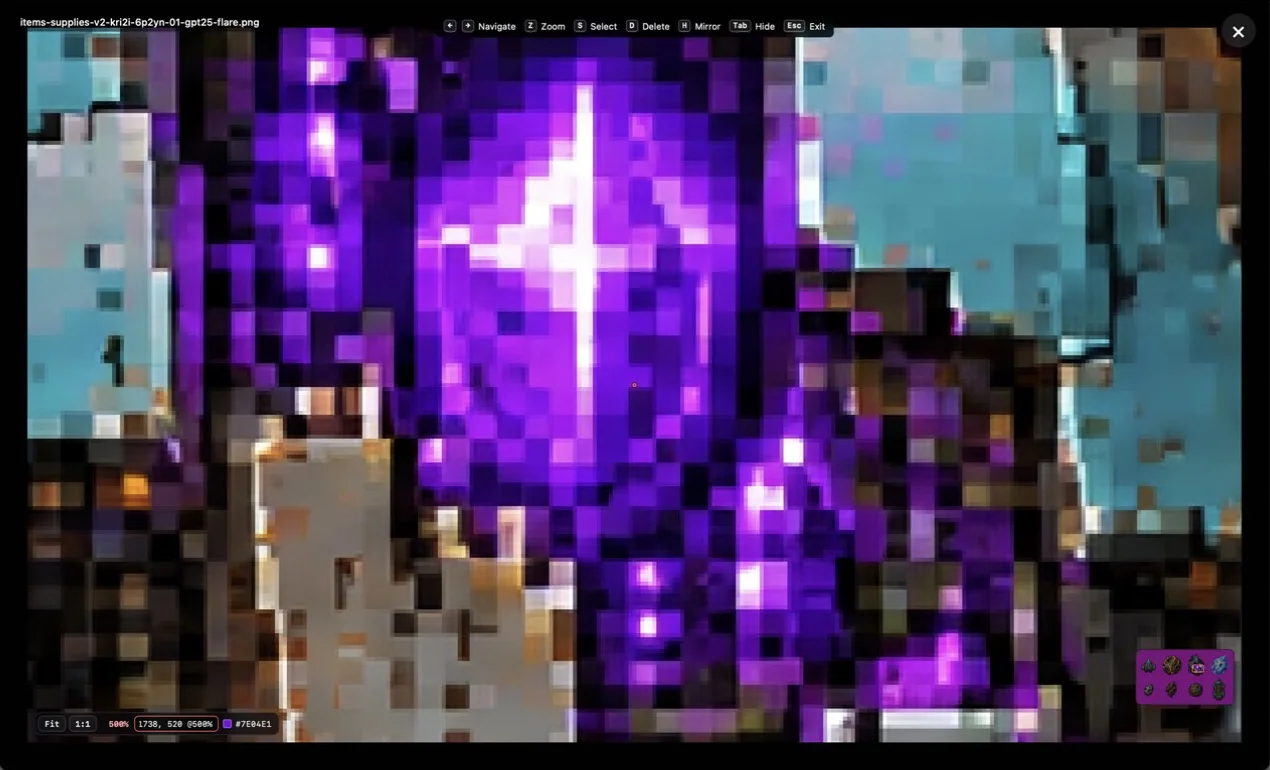
- 02Double-click or press Z to switch between Fit and actual size. The Fit and 1:1 buttons do the same, and the navigator shows where you are.
- 03Close up, each pixel gets a grid line and the readout shows the pixel position and colour under the pointer.
- 04To jump to an exact spot, type its position such as 1200, 640 into the pixel field and press Enter. Add @800% to choose the zoom.
- 05In Compare, zoom any image and others of the same shape follow, with a crosshair marking the matching point. Images of a different shape zoom on their own. Turn Link zoom off, or press K, to zoom each image separately.