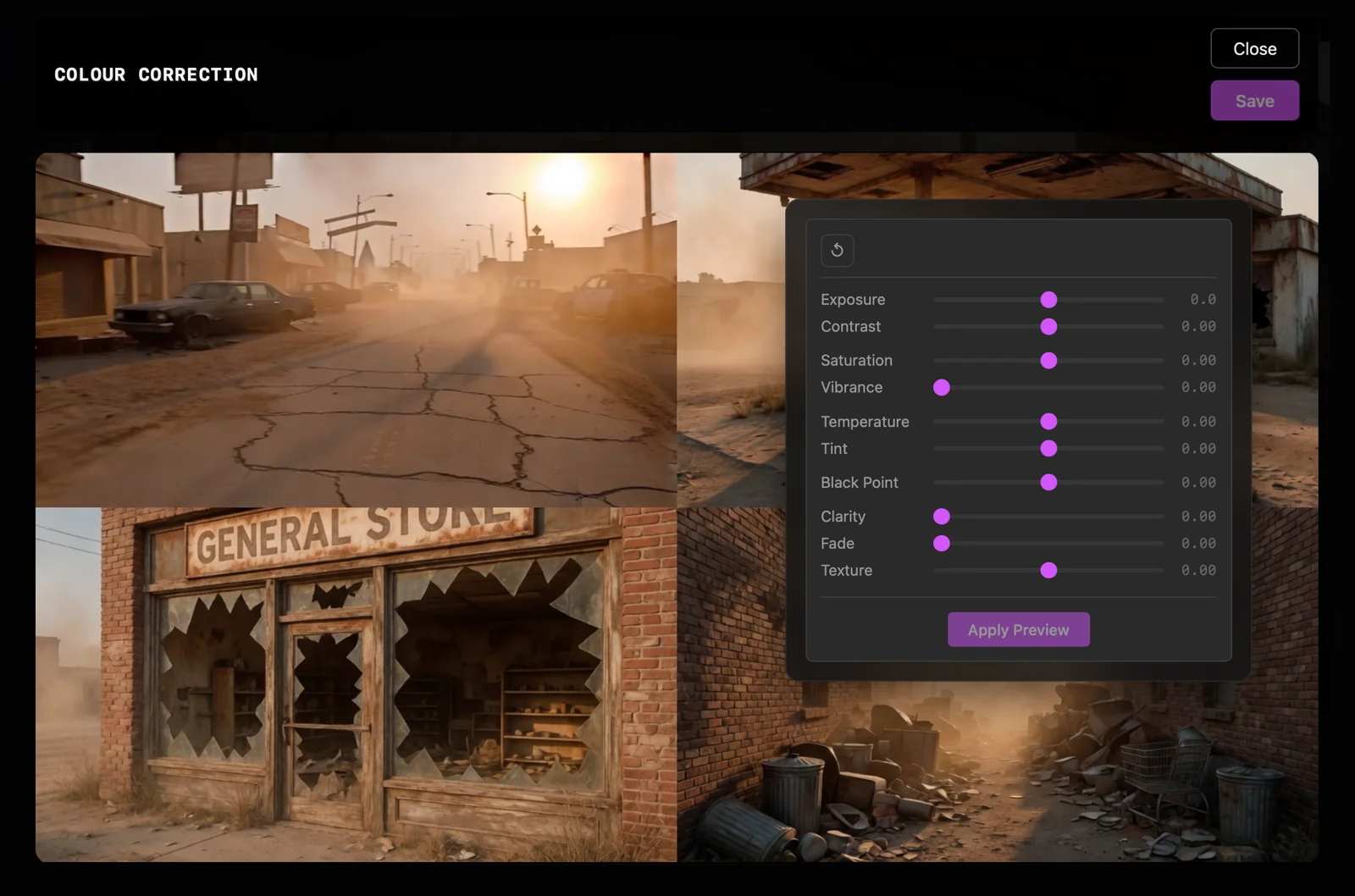
Crop or correct an image
Reframe an image or adjust its colour and tone, saving the result as a new file.
Why use it
These quick tools can prepare an image for the next workflow without opening another application.
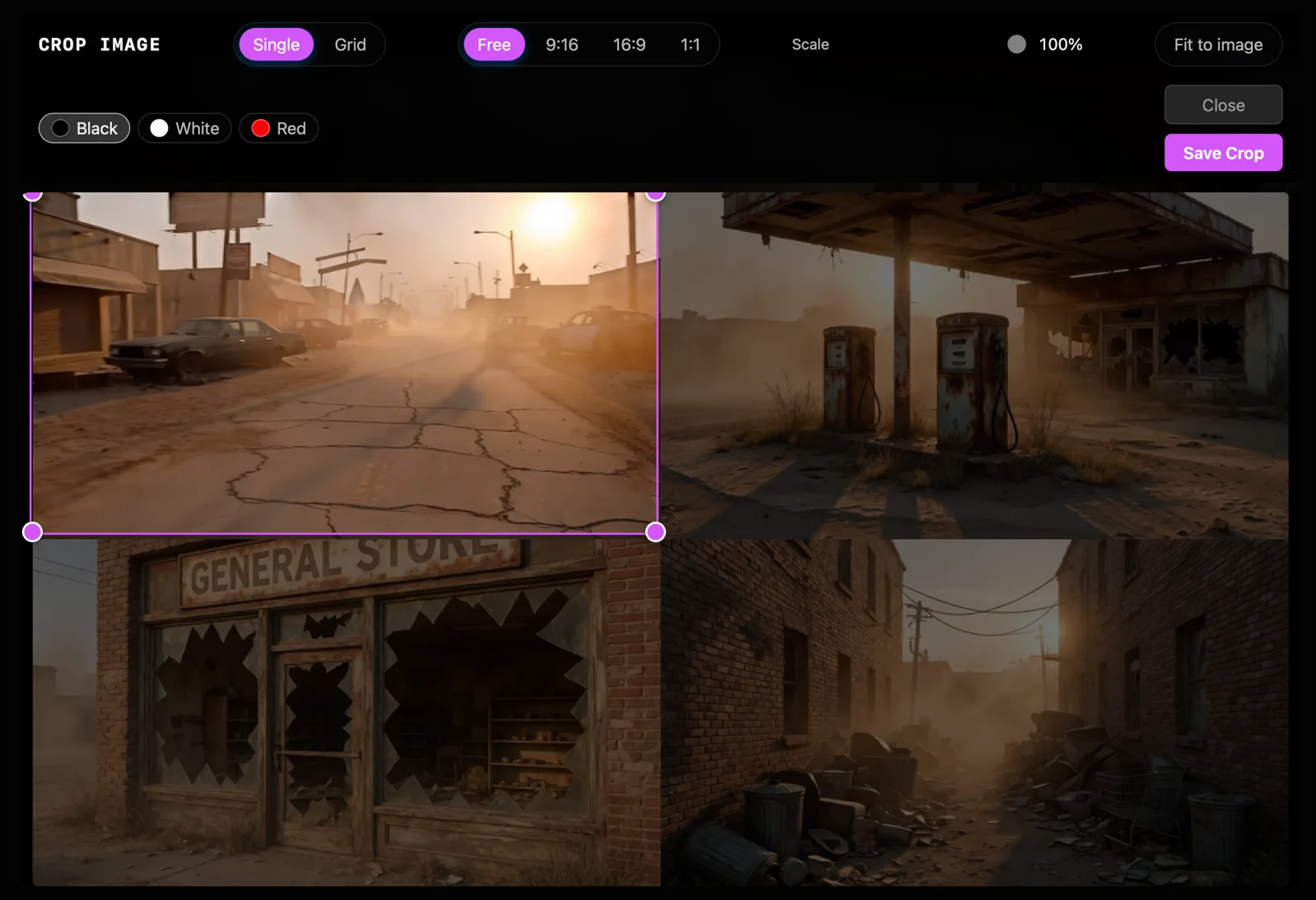
Do this
- 01Select an image and open Crop image or Color correction from the preview actions.
- 02For a crop, choose Single and an aspect ratio, or choose Grid and a grid size; then position or scale the selection.
- 03For colour, adjust the sliders and choose Apply Preview to check the result.
- 04Choose Save Crop or Save Crops, or choose Save for colour correction. PixelPig creates a new file and keeps the original.