Rename or move selected media
Use batch tools to rename selected files or move them to an offered destination.
Why use it
A small naming and folder pass makes generated versions easier to find outside PixelPig as well as inside it.
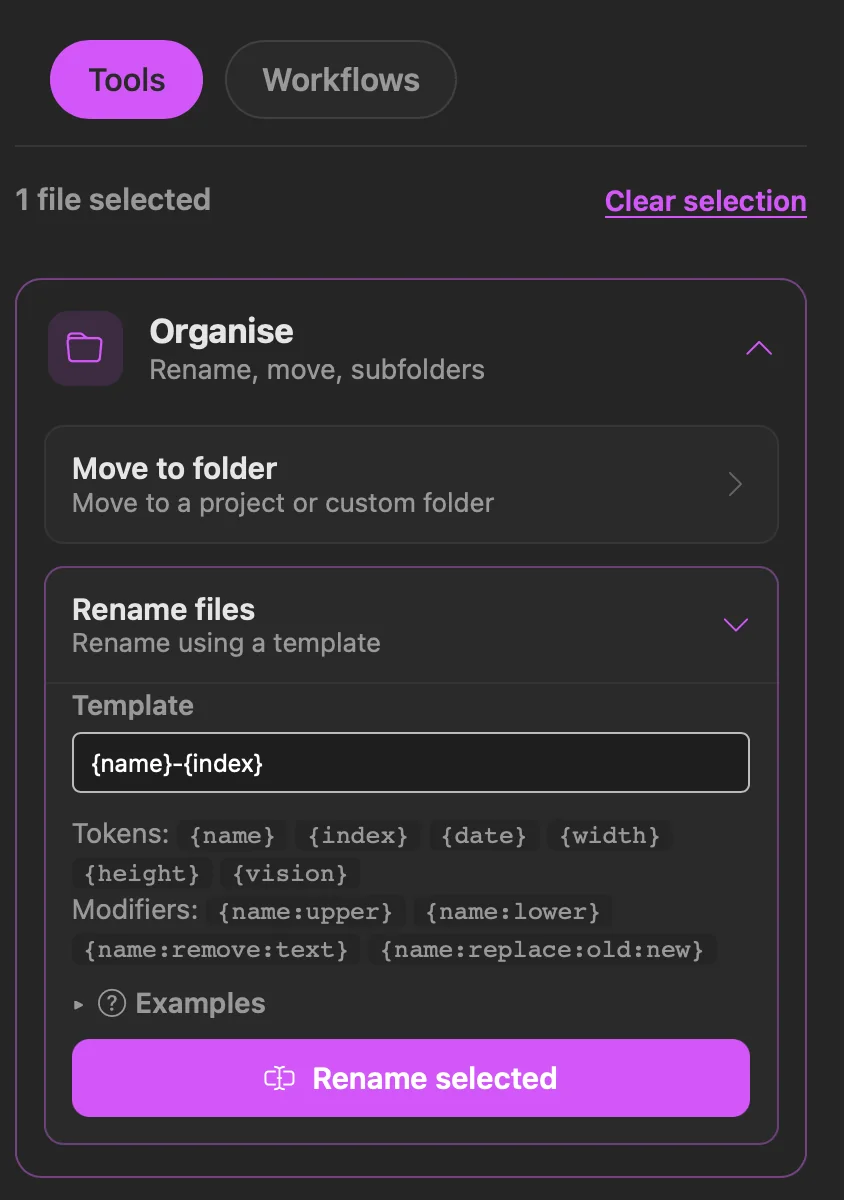
Do this
- 01Select one or more files in the media browser.
- 02Open Actions > Tools and expand Organise.
- 03For moving, expand Move to folder and choose one of the destinations offered for the current source and project.
- 04For renaming, expand Rename files, enter a template using the displayed tokens, then choose Rename selected. Renaming changes the files in place and avoids name collisions.